Run App Configuration
In the Run App Configuration area, predefined configurations can be executed either as a single configuration or as an entire configuration group.
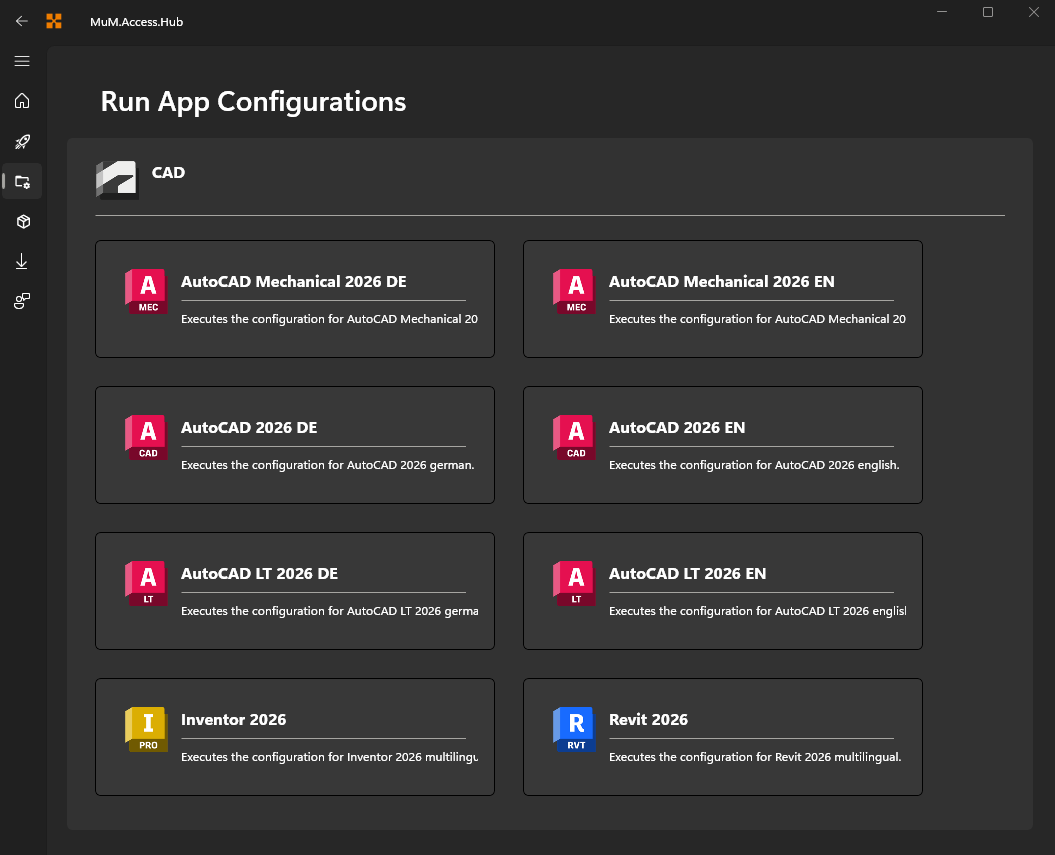
Configurations that are deployed centrally are marked with a badge. Newer versions of these configurations are offered to you as updates, see Update App Configurations.
Run configuration
When a single configuration is selected, it can be executed via Run configuration. The built-in logs help identify and correct errors.
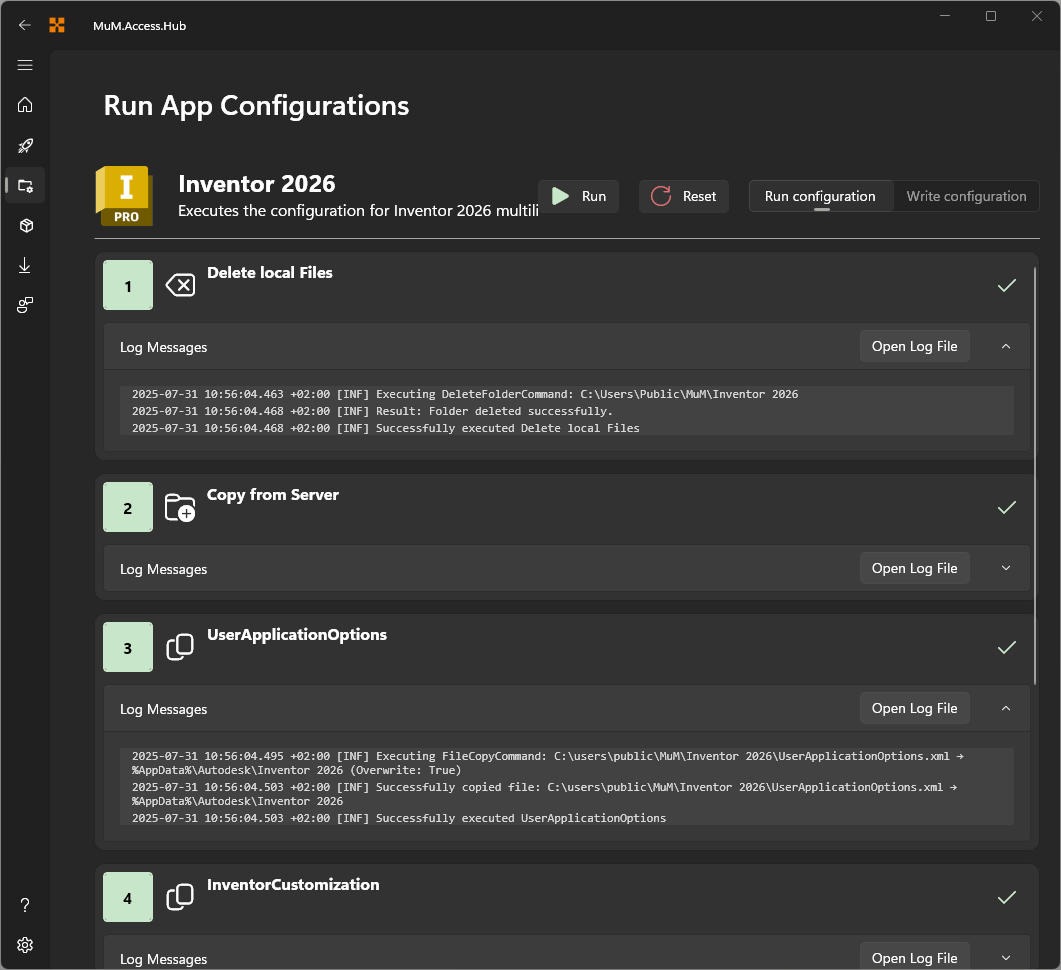
The individual steps are displayed and marked on the right side with a green checkmark (for successful execution) or a red cross (for a failed execution). Clicking on Reset allows the status of the log messages to be cleared and the configuration to be restarted.
Run configuration group
A configuration group bundles several individual configurations that can be executed together via Run configuration group. Each configuration is listed with its execution position number.
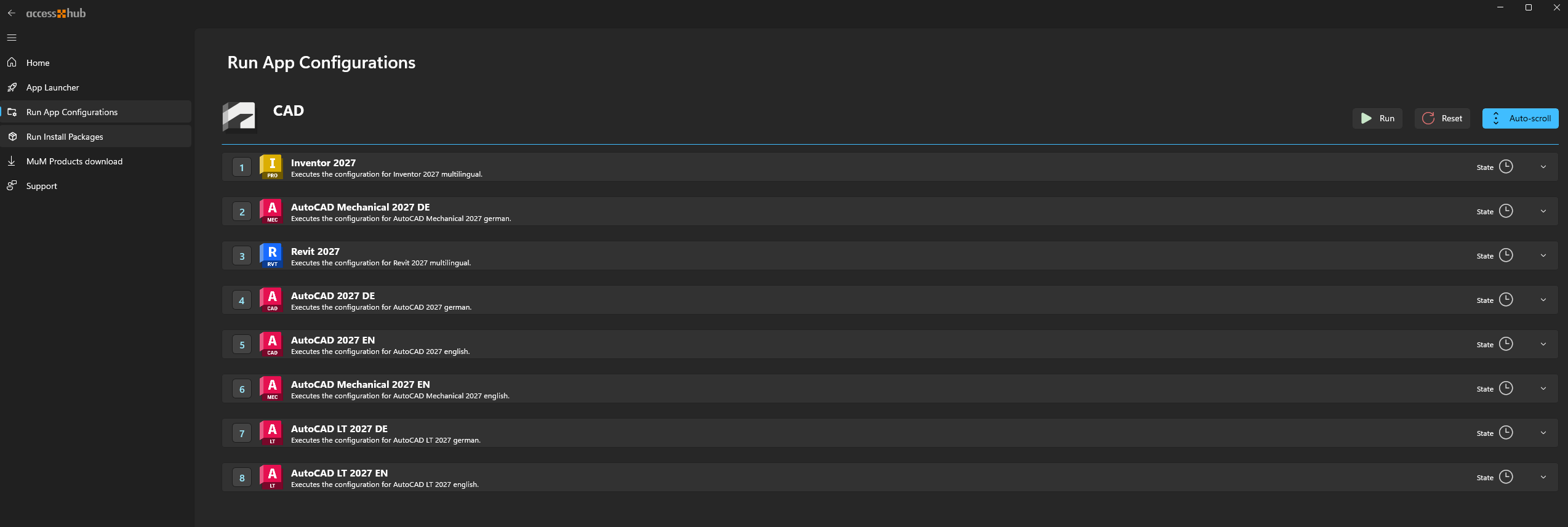
Each configuration within the group can be expanded or collapsed by clicking on it, showing its own steps and status, marked the same way as above with a green checkmark or red cross.
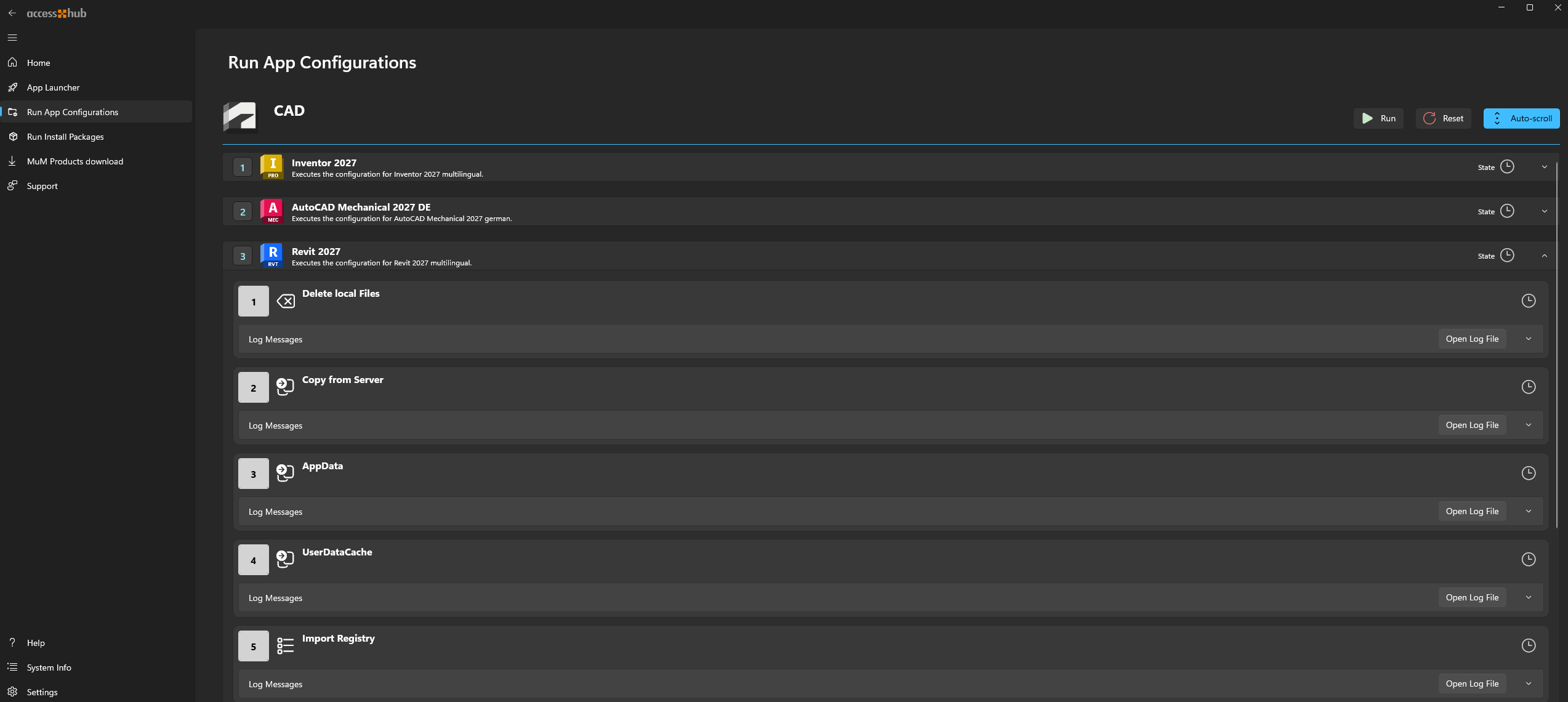
To automatically follow the currently executing step, enable Auto-scroll in the toolbar. Reset clears the log status for the entire group.
Close programs
Before a configuration or a configuration group is run, the MuM.Access.Hub checks whether Autodesk programs such as AutoCAD, Revit or Inventor are open. Configurations often change settings and files these programs use, so they should be closed during the run. If such programs are found, the Close programs dialog lists them.

Check againchecks once more. As soon as all listed programs are closed, the dialog closes and the run starts.Continue anywaystarts the run although programs are still open.Canceldoes not start the run.