Update App Configurations
App configurations can be deployed centrally. As soon as a newer version of such a configuration is published, the MuM.Access.Hub informs you and runs the update with a single click. You no longer need to be asked to run a configuration again by hand.
Deployed configurations are marked with a badge in the Run App Configuration overview.

Updates are only offered for configurations that have already been run successfully on this computer. A configuration that was never run here is not offered as an update.
When the Hub checks for updates
The MuM.Access.Hub checks for newer versions every time it starts. If the option Watch for new versions while running is turned on, newly published versions are also detected while the Hub is open.
If all configurations are up to date, nothing is shown.
Updates available
If newer versions are found, the Updates available dialog opens. Every entry shows the icon and name of the configuration, the version change (e.g. 1 → 2) and, if available, the notes added when the version was published. All entries are selected.
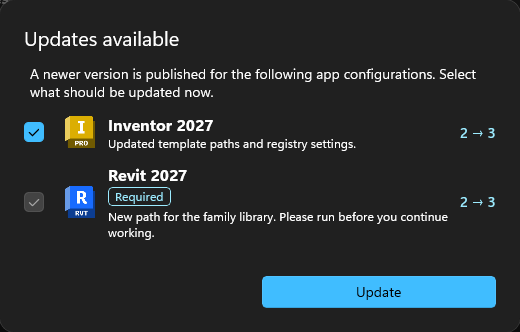
How an entry behaves depends on the type chosen when the configuration was published:
| Type | Behavior |
|---|---|
| Normal | The entry can be deselected. Ignore postpones the updates. |
| Required | The entry is marked with Required and cannot be deselected. As long as such an entry is listed, the updates cannot be ignored. |
| Automatic | The entry is marked with Automatic and cannot be deselected. If only automatic updates are pending, no dialog is shown and the run starts right away. |
Click Update to run the selected configurations.
Ignored updates
If the updates are ignored, the entry Pending app configurations appears in the navigation menu. The number shows how many updates are still open. Clicking the entry opens the Updates available dialog again.

Ignored updates are offered again at the next start. If a configuration is run the usual way in Run App Configuration, it is up to date as well and disappears from the list.
Update configurations
The selected configurations are run one after another on the Update configurations page. As with a configuration group, every configuration shows its steps, their status and the logs. Navigation stays blocked while the run is in progress.
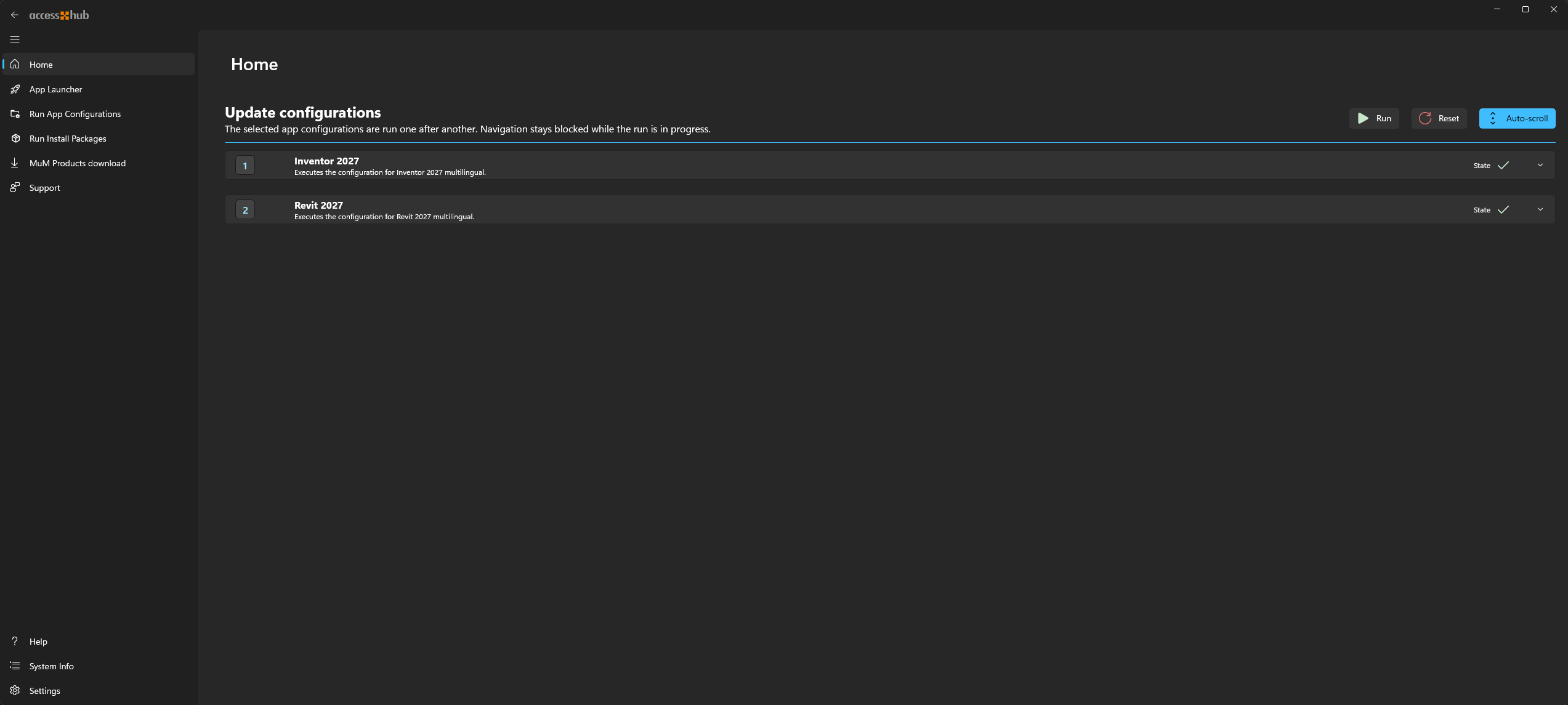
Before the run starts, the Hub checks whether Autodesk programs are open. See Close programs. For required and automatic updates, the run cannot be cancelled in this dialog.
An update only counts as applied if the configuration ran successfully. If the run fails, the update stays open and is offered again.
Notifications
If the MuM.Access.Hub was started minimized or runs in the background in the systray, you are informed about new updates with a Windows notification. It lists up to three configurations with their new version number. Its title depends on the updates found:
New app configurations availableRequired app configuration update, please run itApp configurations are updated automatically when opened
Clicking the notification opens the MuM.Access.Hub together with the Updates available dialog. The notification stays in the Windows notification center until it is handled.
If the Hub was started minimized, the dialog also appears as soon as you open the window.