Run App Configuration - Admin
In the Run App Configuration, predefined configurations can be executed, edited, or copied. This allows software configurations to be made available across the entire system and managed globally.
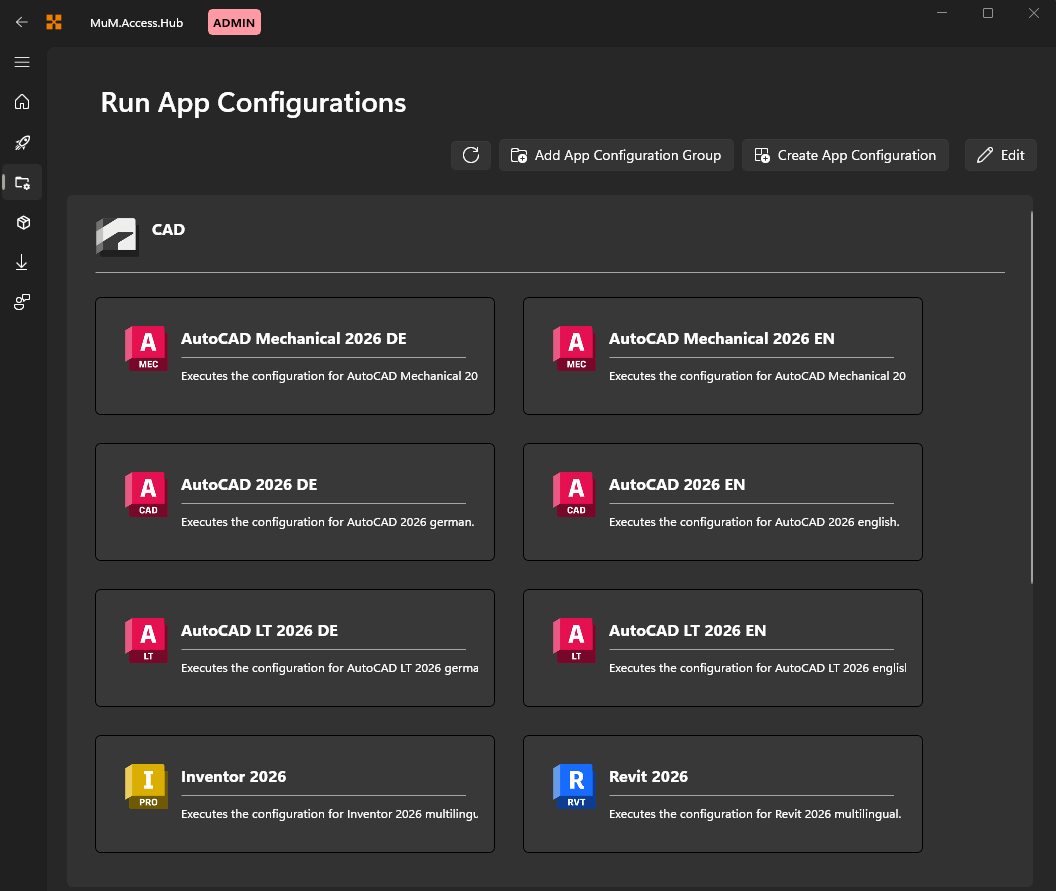
Deployed configurations are marked with a badge. How configurations are deployed and published is described in Publish App Configuration.
Run configuration
When a configuration is selected, it can be executed via Run configuration or Write configuration. This allows configurations to be either executed or written. The built-in logs help identify and correct errors.
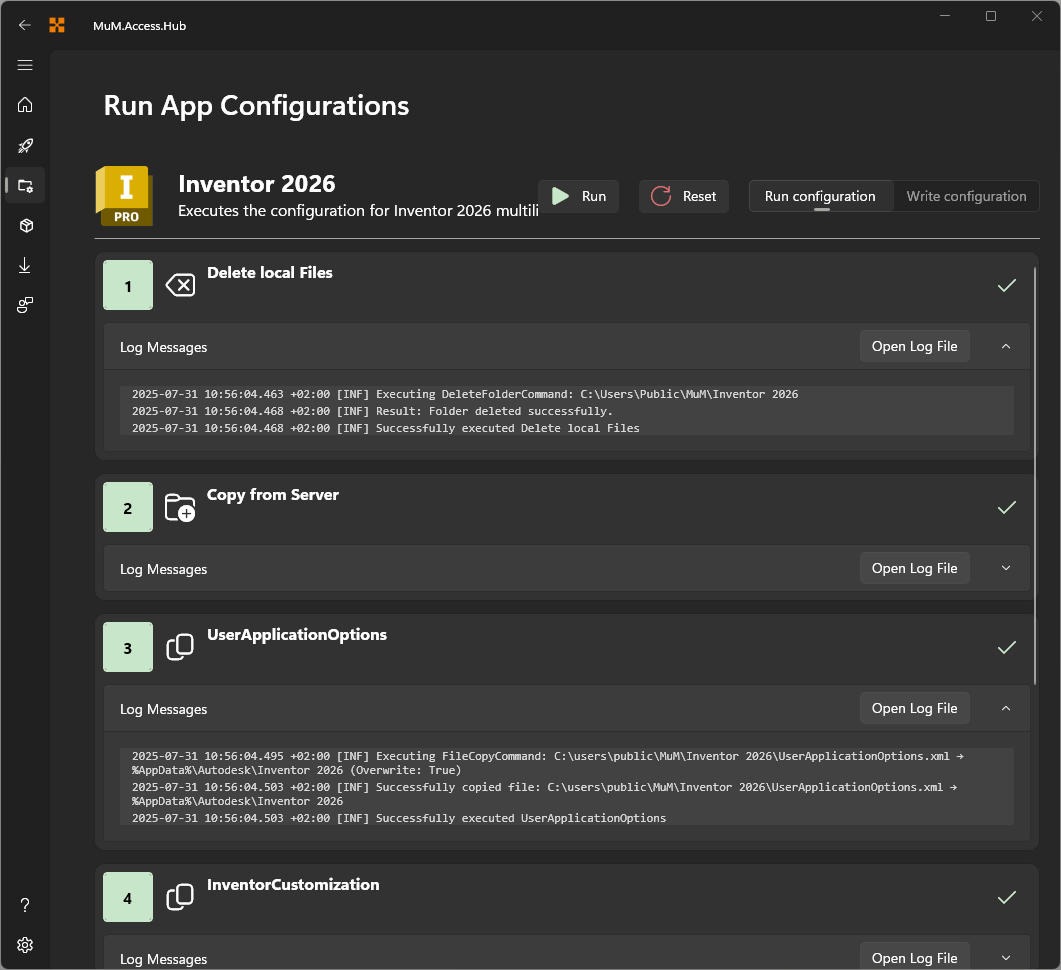
The individual steps are displayed and marked on the right side with a green checkmark (for successful execution) or a red cross (for a failed execution). Clicking on Reset allows the status of the log messages to be cleared and the configuration to be restarted.
Before a configuration or a configuration group is run, the Hub checks whether Autodesk programs are open, see Close programs.
Run configuration group
A configuration group bundles several individual configurations that can be executed together via Run configuration group. As in the non-admin view, each configuration can be expanded or collapsed to show its own steps and status, and Auto-scroll can be enabled in the toolbar to follow the currently executing step.
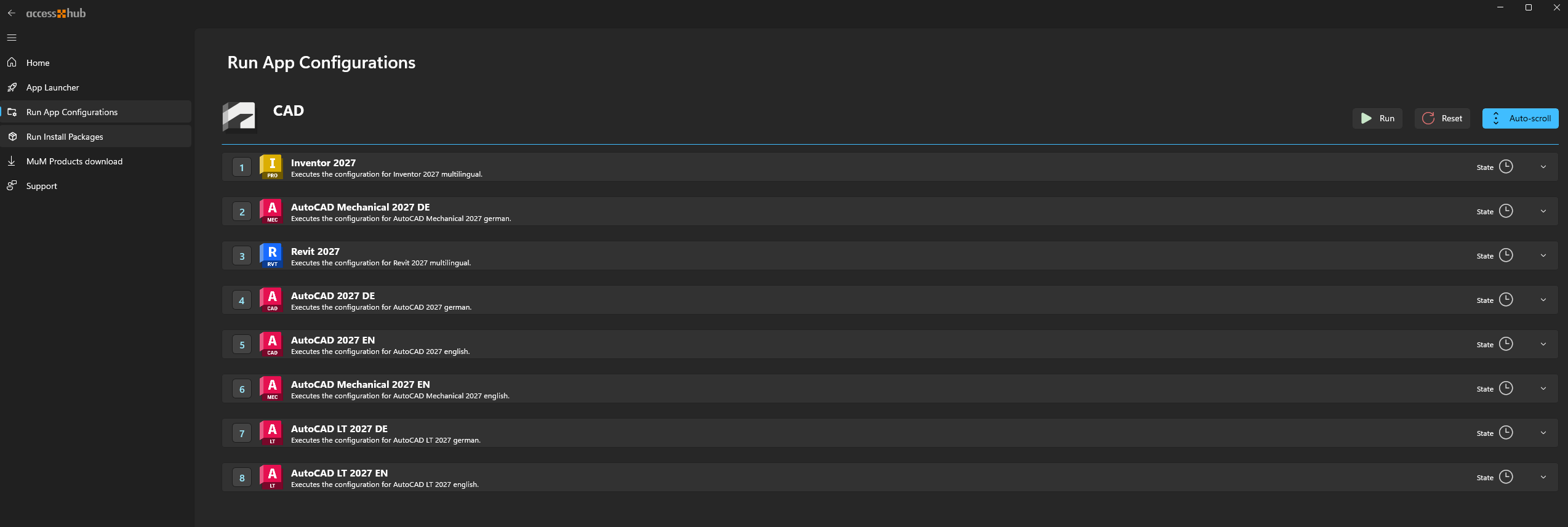
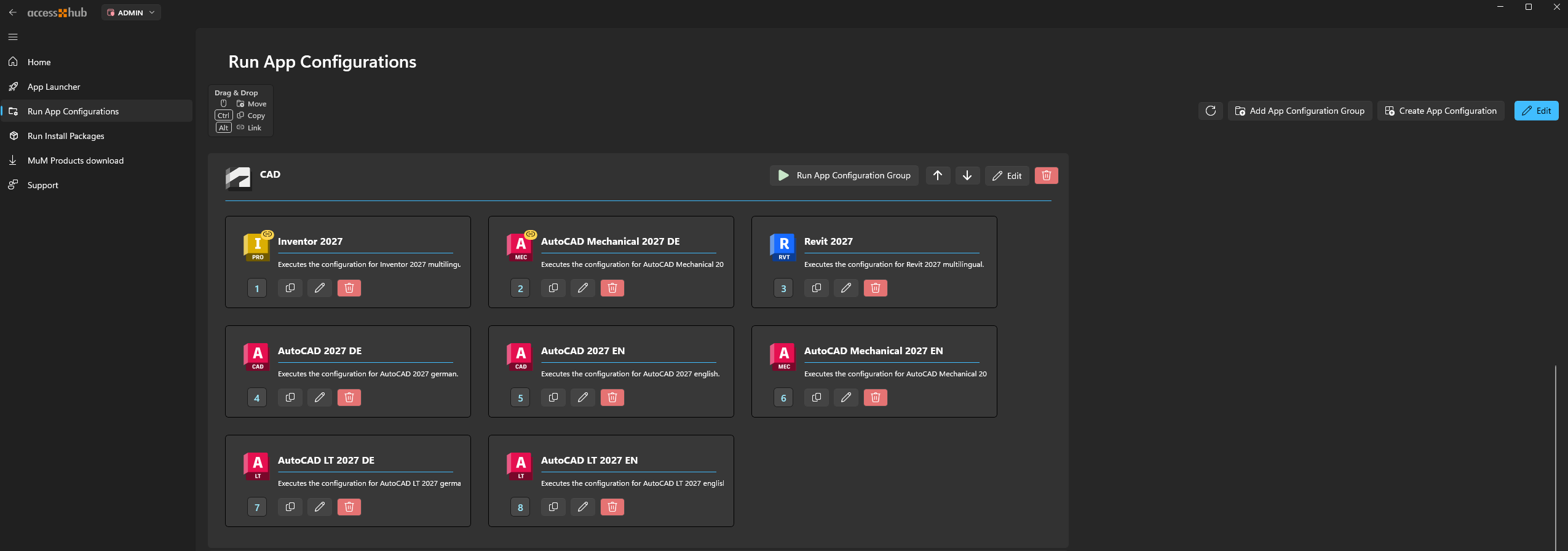
Configurations within the group are numbered according to their execution order. Click Edit to switch the group into edit mode, where each configuration can be moved to a new position via drag & drop, and the position number updates accordingly. Individual configurations can also be renamed, copied, or deleted from this view.
Assigning configurations to multiple groups
A configuration can belong to more than one group at the same time. This is configured when creating the configuration. A configuration linked to more than one group is marked with a badge in the group's edit mode.
The position number applies to each group separately. Reordering a configuration in one group does not change its position in the other groups.

Moving, copying, and linking configurations between groups
In edit mode, a configuration can also be dragged onto a different group. This works exactly like moving, copying, and linking packages between groups on the Run install group page: no modifier moves the configuration, Ctrl copies it, and Alt links it to the additional group.
Duplicating a configuration via the copy icon works the same way as Ctrl + drag & drop: the resulting copy is only linked to the group it was duplicated in, even if the original configuration belonged to multiple groups.
Deleting groups and configurations
Deleting a group removes it from every configuration that was linked to it. Configurations that are still linked to at least one other group remain available there.
Deleting a configuration depends on how many groups it belongs to:
- If the configuration belongs to more than one group, deleting it from a group only removes that group's link, and the configuration remains available in its other groups.
- If the configuration belongs to only that one group, deleting it removes the configuration entirely.
The delete confirmation dialog is the same in both cases; the badge indicates beforehand whether a configuration is still linked elsewhere. Once a configuration is linked to only one group again, its badge is removed.
Write configuration
When a configuration is to be written, a confirmation prompt always appears to ensure that it should actually be executed.This will overwrite the global configuration.
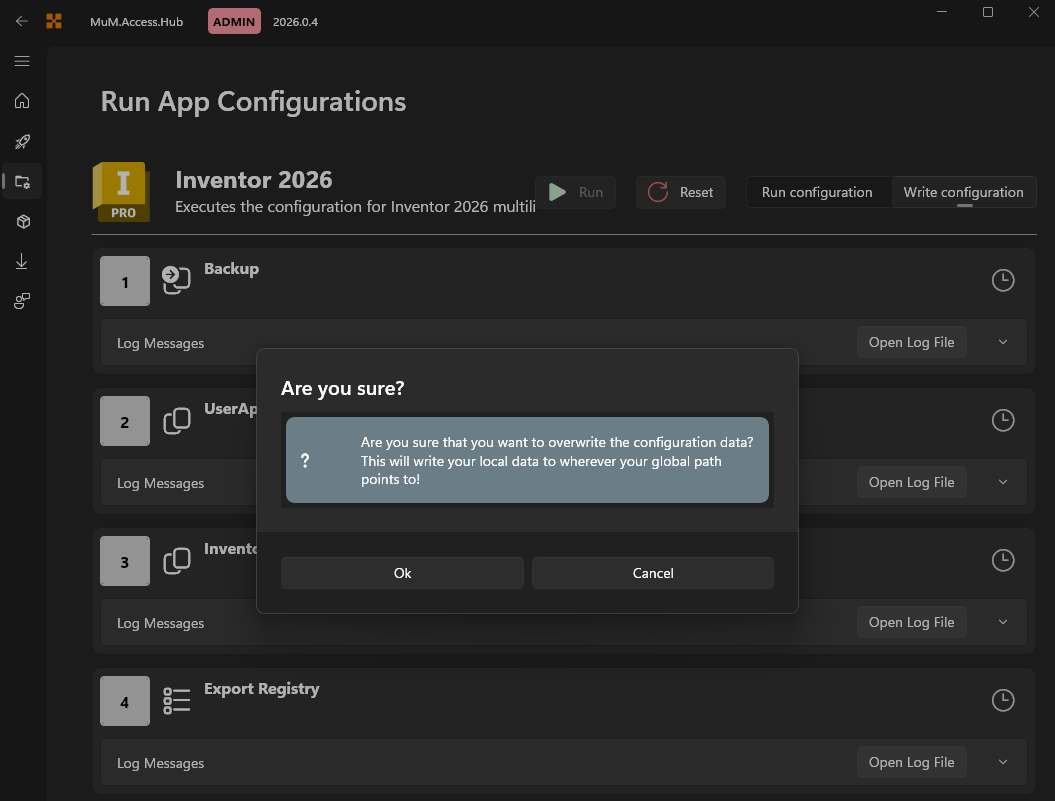
Please back up the global configuration beforehand in case you need to revert to it.